
Users, Roles & Permissions
Invite your team and control what each member can see and do in SKU Manager
Users, Roles & Permissions
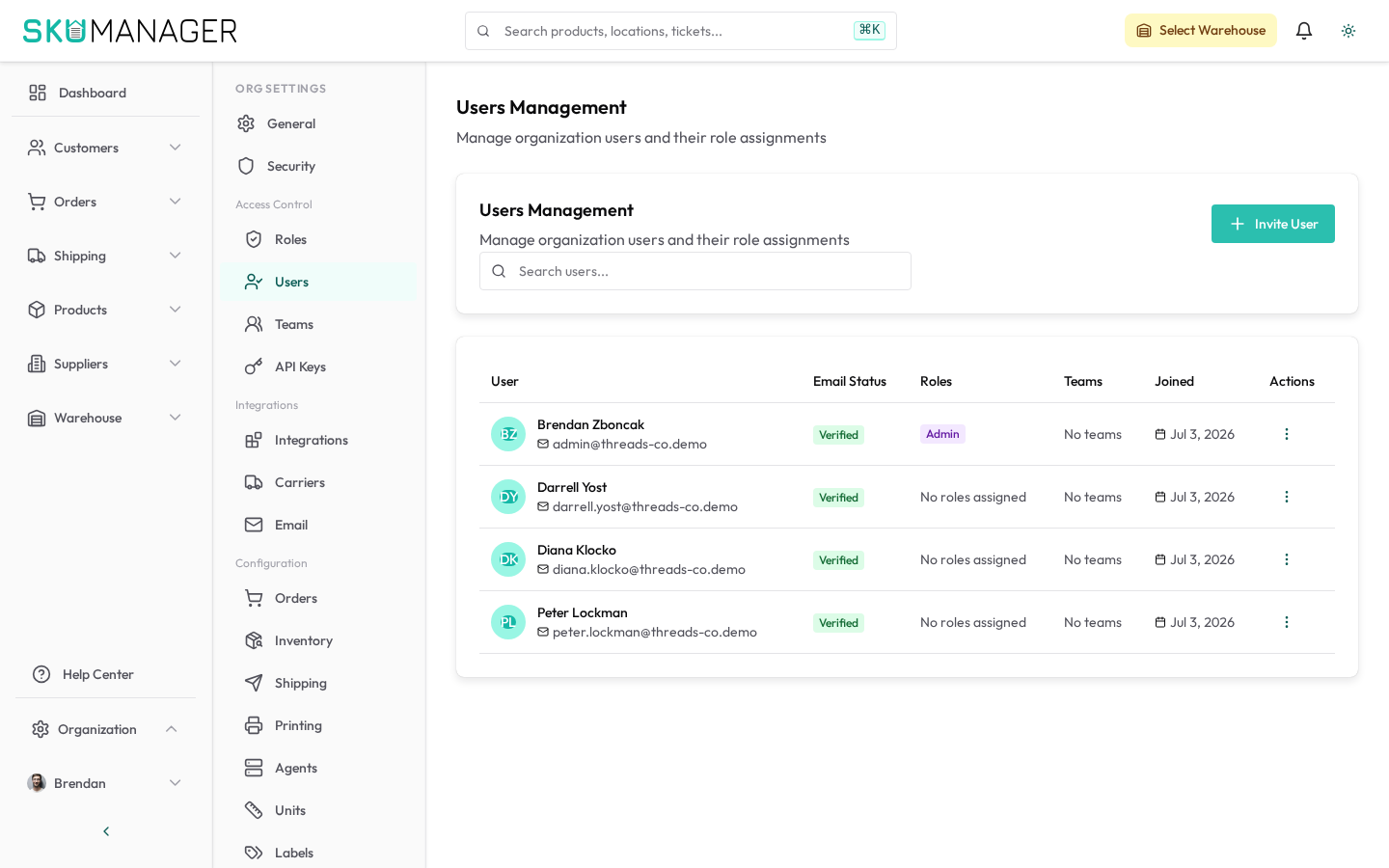
SKU Manager uses role-based access control so you can give each team member the right level of access without exposing sensitive settings or data.
Built-in Roles
| Role | What they can do |
|---|---|
| Admin | Full access to all settings, billing, users, data, and integrations |
| Manager | Manage products, orders, inventory, and customers — cannot change billing or workspace settings |
| Warehouse Staff | Process orders, receive stock, perform cycle counts, scan barcodes — no product editing or settings access |
| Read Only | View products, orders, and reports — no create, edit, or delete access |
Inviting Team Members
- Go to Settings → Organization → Users → Invite Member
- Enter the person's email address
- Select their role
- Click Send Invite
The invited person receives an email with a link to accept the invitation and create their account. Pending invitations can be revoked or resent from Settings → Organization → Users → Pending Invitations.
Changing a Member's Role
- Go to Settings → Organization → Users
- Click the member's name
- Select a new role from the Role dropdown
- Click Save
Role changes take effect immediately — the member's next page load reflects the new permissions.
Removing a Team Member
- Go to Settings → Organization → Users
- Click the member's name
- Click Remove Member and confirm
Removing a member revokes their access immediately. Their historical activity (orders processed, stock adjustments made) is retained in the audit log.
Custom Roles
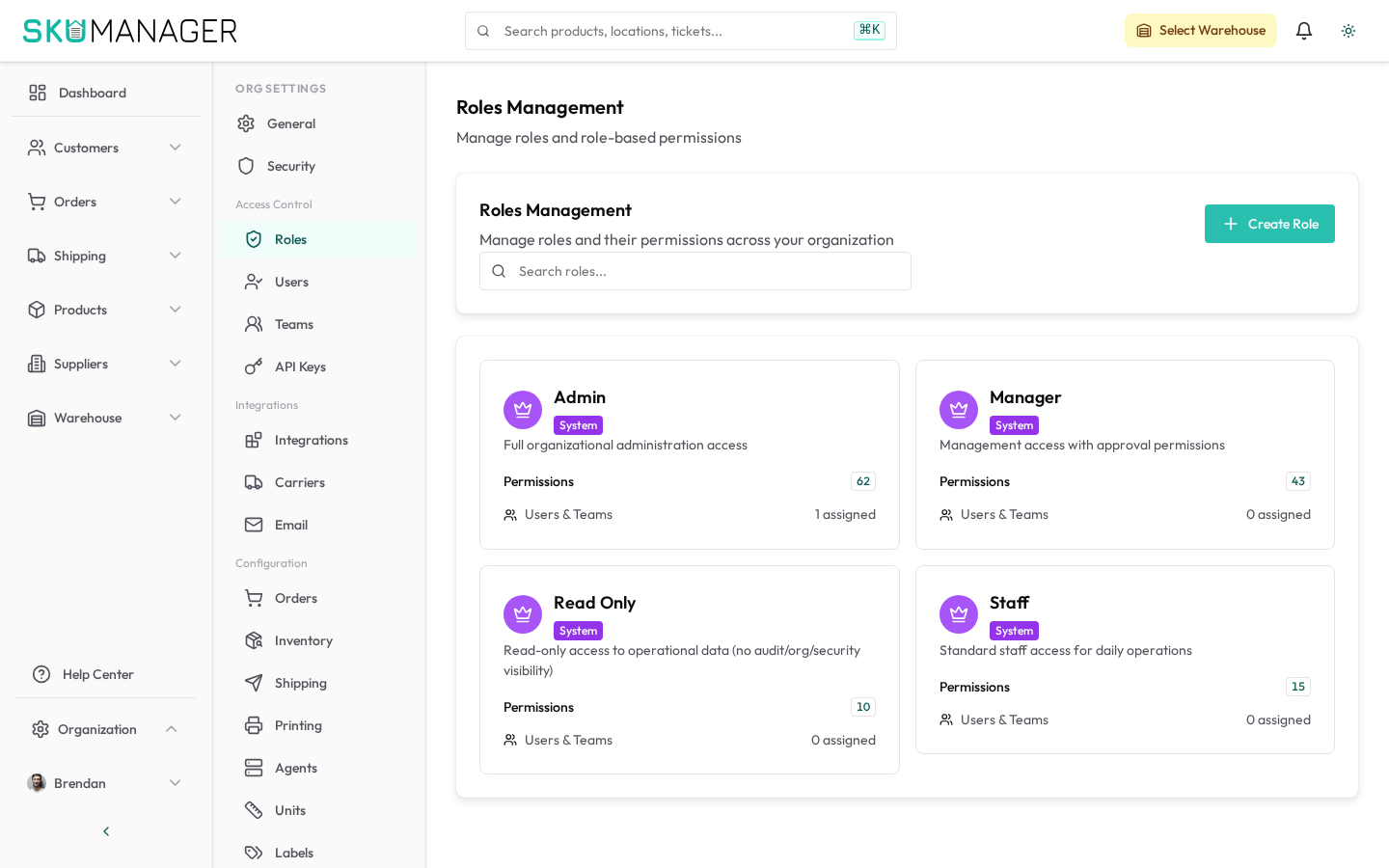
On the Business and Enterprise plans, you can define custom roles with fine-grained permission controls:
- Go to Settings → Organization → Roles → Create Role
- Name the role (e.g. "Receiving Operator")
- Toggle individual permissions on or off — available permissions include products, orders, inventory, customers, stores, users, reporting, and settings
- Click Save
Custom roles can be assigned to any team member like built-in roles.
Audit Log
Every action taken by a user is recorded in the audit log. Audit and activity records are accessible to platform administrators under Settings → Platform Admin → Activity, who can filter them by user, action type, and date range.
Audit log entries cannot be edited or deleted. They are retained for the lifetime of your workspace.