
Sales Channels & Integrations
Connect Shopify and other sales channels to SKU Manager
Sales Channels & Integrations
SKU Manager centralises orders and inventory across all your sales channels. Connect a channel once, and orders flow in automatically while inventory levels stay in sync across every storefront.
Ways to Bring Orders In
- Shopify — a connected sales channel with full two-way sync of products, inventory, orders, and fulfillments
- Manual order entry — enter phone, in-person, or wholesale orders directly in SKU Manager
- GraphQL API — connect a custom storefront or ERP and read/write orders, products, and inventory programmatically
Connecting Shopify
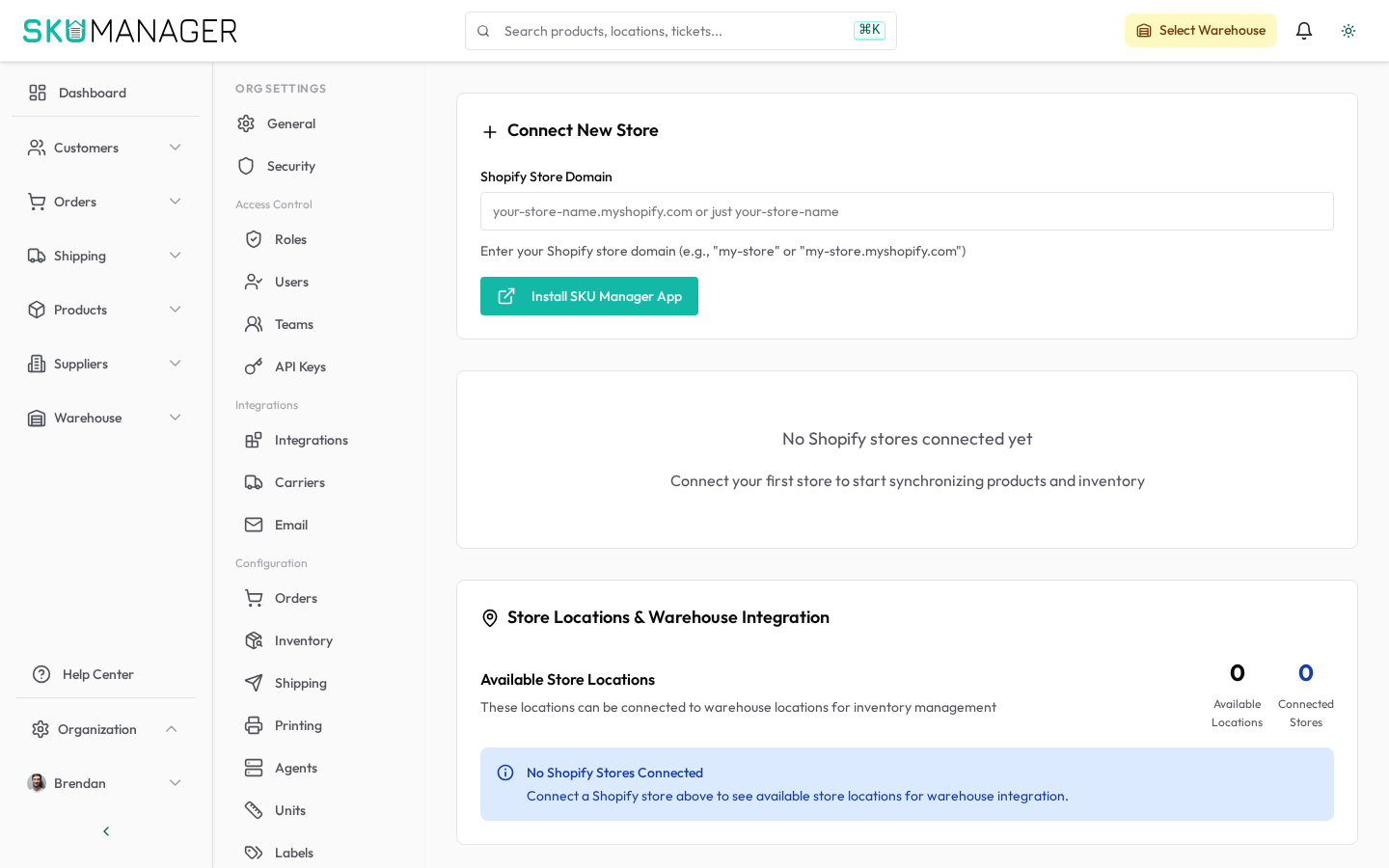
See Shopify Sync for the full connection guide. In brief:
- Go to Settings → Organization → Shopify
- Enter your Shopify store domain
- Click Install App and authorize access in Shopify
- The initial product import runs automatically
Entering Orders Manually
For orders that arrive outside your connected storefronts — phone, in-person, or wholesale — you can create an order directly in SKU Manager from the Orders page. Manually entered orders follow the same pick-pack-ship workflow, and inventory is deducted when they are fulfilled.
Managing Orders Across Channels
The Orders page shows orders from every source combined — your Shopify channel, manually entered orders, and orders created through the API. Use the Store filter to narrow the list to a single source.
Inventory is a single shared pool. Stock is allocated across all channels — when an item sells through one channel, the available quantity decreases everywhere. Reservations are held per warehouse against pending orders, so committed stock is not double-sold.
Disconnecting a Store
To remove a store connection:
- Go to Settings → Organization → Shopify
- Click Disconnect Store
- Confirm the action
Historical orders and inventory movements from the disconnected store are retained in SKU Manager. No data is deleted.
API Integration
For custom integrations, SKU Manager exposes a GraphQL API for reading and writing orders, products, and inventory. Retrieve your API key from Settings → Organization → API Keys. Full API documentation is available in the GraphQL API reference.