
Notifications & Alerts
Configure low stock alerts, order notifications, and email settings in SKU Manager
Notifications & Alerts
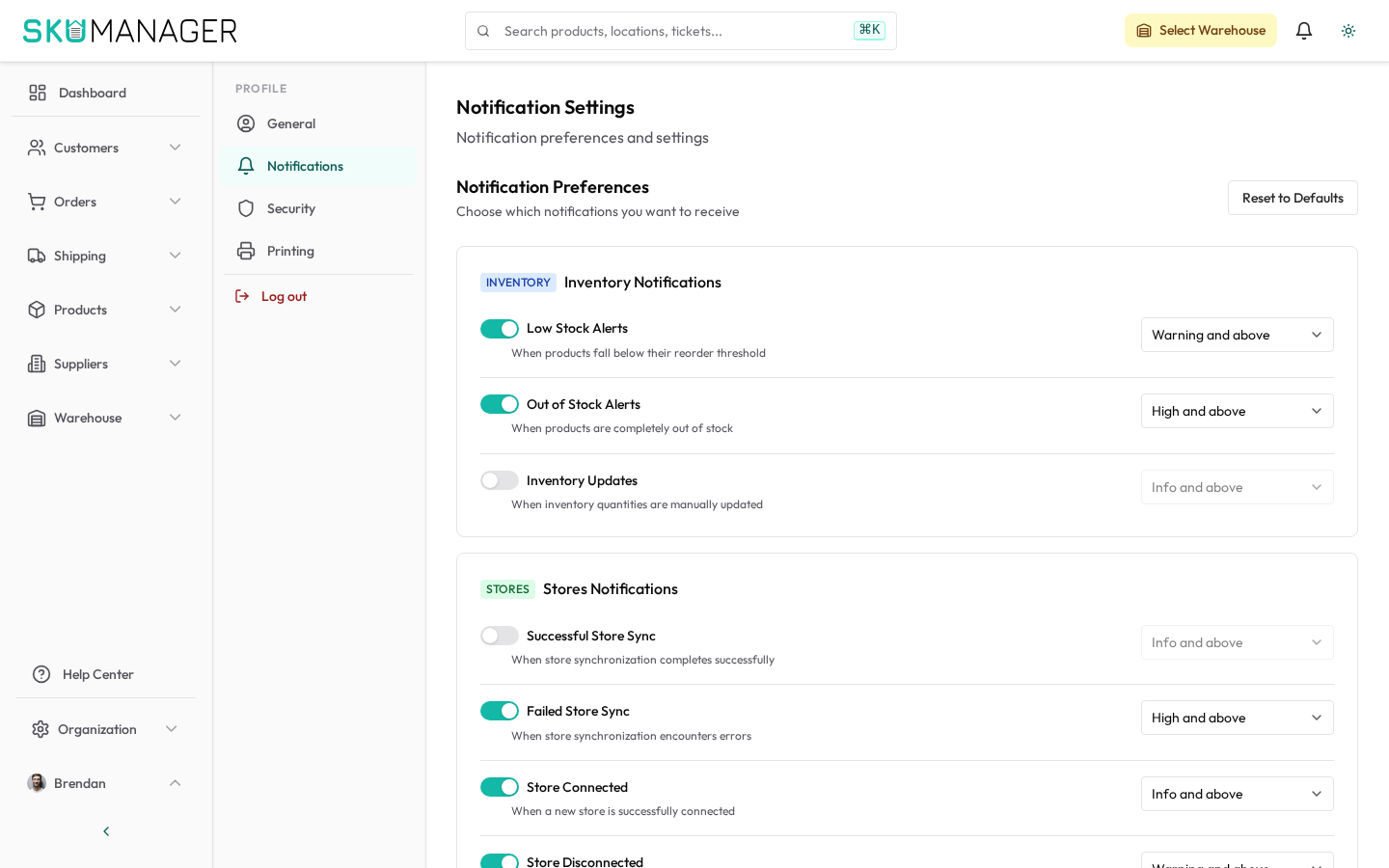
SKU Manager sends alerts when inventory falls below reorder points, when orders require attention, and when background operations complete. Configure which notifications you receive and where they are delivered.
Low Stock Alerts
Low stock alerts fire when a variant's available quantity drops to or below its reorder point.
To configure reorder points:
- Open a product variant and go to the Inventory tab
- Set the Reorder Point value
- Click Save
When the alert fires, it appears on the Dashboard under Action Items. To also receive an email:
- Go to Settings → Profile → Notifications
- Add one or more email addresses
- Toggle Email Alerts on
- Click Save
Emails are sent once per alert, not repeated until stock recovers above the threshold and drops again.
Order Notifications
| Event | Who receives it | How to configure |
|---|---|---|
| New order received | Assignable by store | Settings → Organization → Shopify |
| Order awaiting action for >X hours | Managers | Settings → Profile → Notifications |
| Return received | Warehouse team | Settings → Profile → Notifications |
Dashboard Alerts
The SKU Manager dashboard surfaces time-sensitive items under Action Items:
- Orders not picked within your configured SLA window
- Variants with stock at or below reorder point
- Purchase orders overdue for receipt
- Sync errors from connected stores
Click any item to navigate directly to the relevant order, product, or sync log.
Notification Preferences per User
Each team member can set their own notification preferences:
- Go to Settings → Profile → Notifications
- Toggle individual notification types on or off
- Click Save
Admin-configured notifications (e.g. low stock email recipients) are set at the workspace level and are separate from per-user preferences.
Browser Push Notifications
For real-time alerts in the browser:
- Go to Settings → Profile → Notifications
- Click Enable Push Notifications
- Allow the browser permission prompt
Push notifications appear even when SKU Manager is in a background tab. They are supported in Chrome, Edge, and Safari on desktop, and in Chrome on Android.