
Customers
View customer profiles, order history, and manage customer data in SKU Manager
Customers
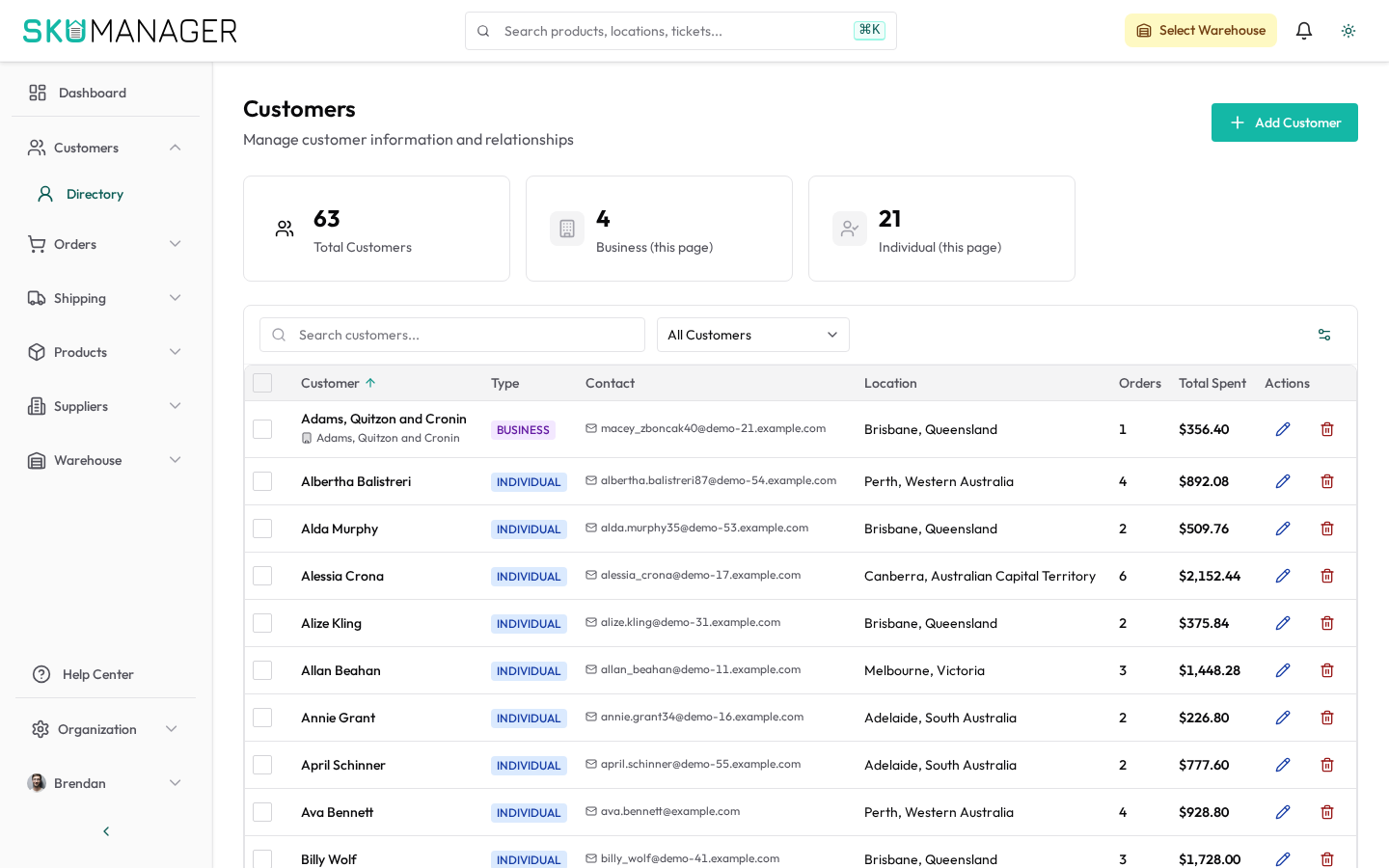
The Customers section gives you a unified view of everyone who has placed an order through your connected stores. Customer records are created automatically when orders are imported and are updated as new orders arrive.
Customer Profiles
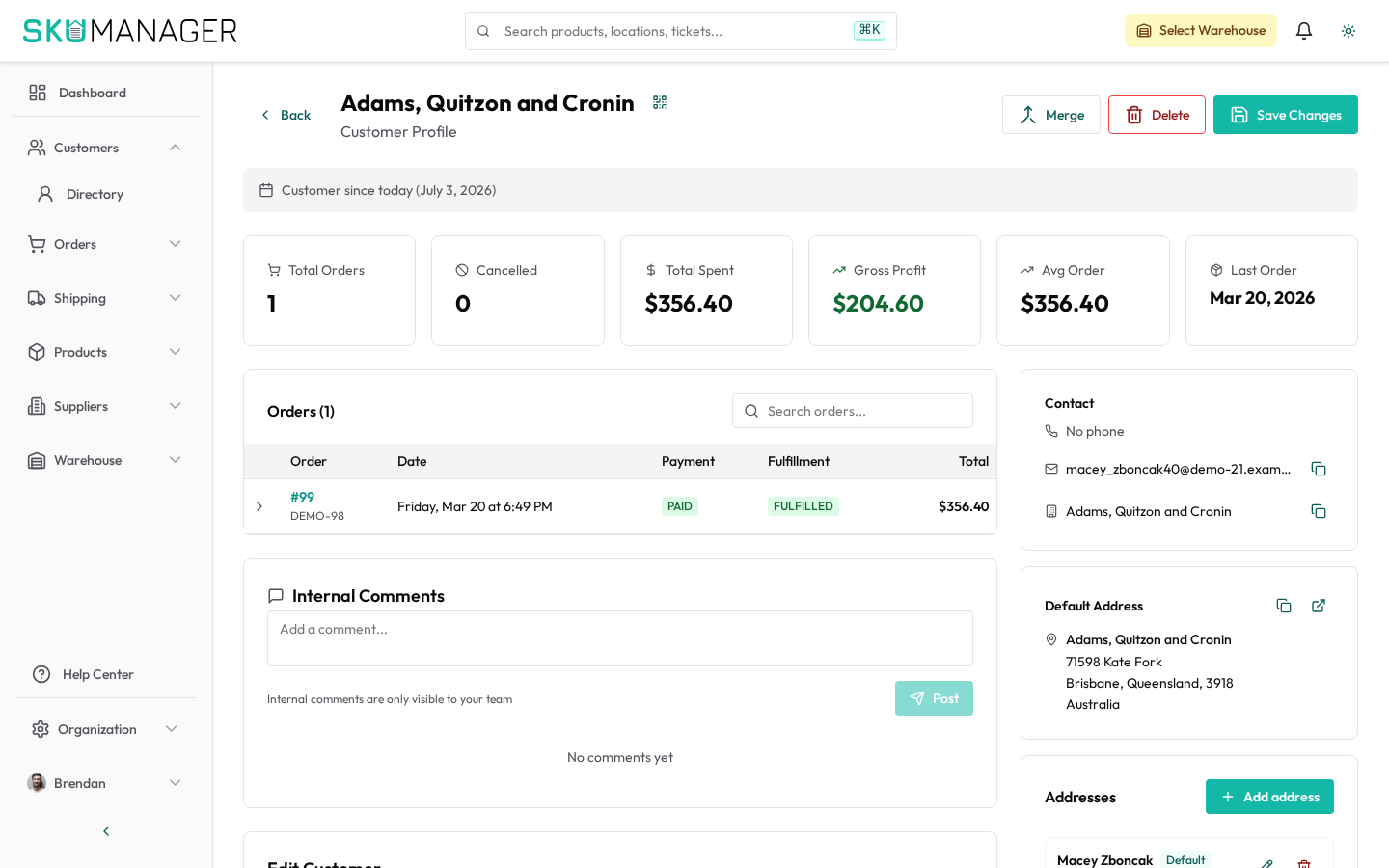
Each customer profile includes:
- Contact details — name, email address, and phone number (as provided at checkout)
- Shipping addresses — all addresses used across their orders
- Order history — every order linked to this customer, with status and value
- Total spend — lifetime order value across all connected stores
- Notes — free-text notes added by your team
Navigate to Customers from the main menu to see the full list. Use the search bar to find a customer by name, email, or phone number.
Viewing Order History
Open a customer profile and click the Orders tab to see all orders placed by that customer. Each row shows:
- Order number and date
- Status (pending, shipped, delivered, returned)
- Items and quantities
- Total value
Click any order to open the full order detail, where you can process fulfilment, create returns, or print packing slips.
Filtering the Customer List
Use the filter toolbar on the Customers page to narrow your view:
- Store — filter by which connected store the customer came from
- Total orders — show customers with more or fewer than a given number of orders
- Last order date — find customers who haven't ordered recently
- Tags — filter by any custom tags you have applied
Tagging Customers
Tags let you segment customers for reporting or bulk actions. To add a tag:
- Open a customer profile
- Click the Tags field
- Type a new tag name or select an existing one
- Press Enter — the tag is saved immediately
Tags are searchable and filterable across the full customer list.
Adding Notes
Team notes on a customer profile are visible to all users with access to Customers. Use notes for context like preferred shipping methods, known issues, or account status.
To add a note: open a customer profile, click Add Note, enter your text, and click Save.
Exporting Customer Data
Export the full customer list or a filtered subset as a CSV file using Customers → Export. Exported fields include name, email, phone, address, total orders, and lifetime spend. Use exports for mailing lists, analytics, or CRM imports.
Data Retention and Privacy
Customer records are retained as long as your workspace is active. To delete a customer record entirely (for example, to comply with a data deletion request), open the profile and click Delete Customer. This action removes all personal data but preserves anonymised order records for accounting purposes.
If you need to update a customer's email or contact details, edit the relevant field directly on the customer profile.
Customers and Shopify
Customers created via Shopify orders are linked to their Shopify customer record. Changes to contact details in SKU Manager do not sync back to Shopify — update those in Shopify directly to keep both systems consistent.