
Shopify Sync Overview
Connect your Shopify store and keep inventory in sync automatically
Shopify Sync
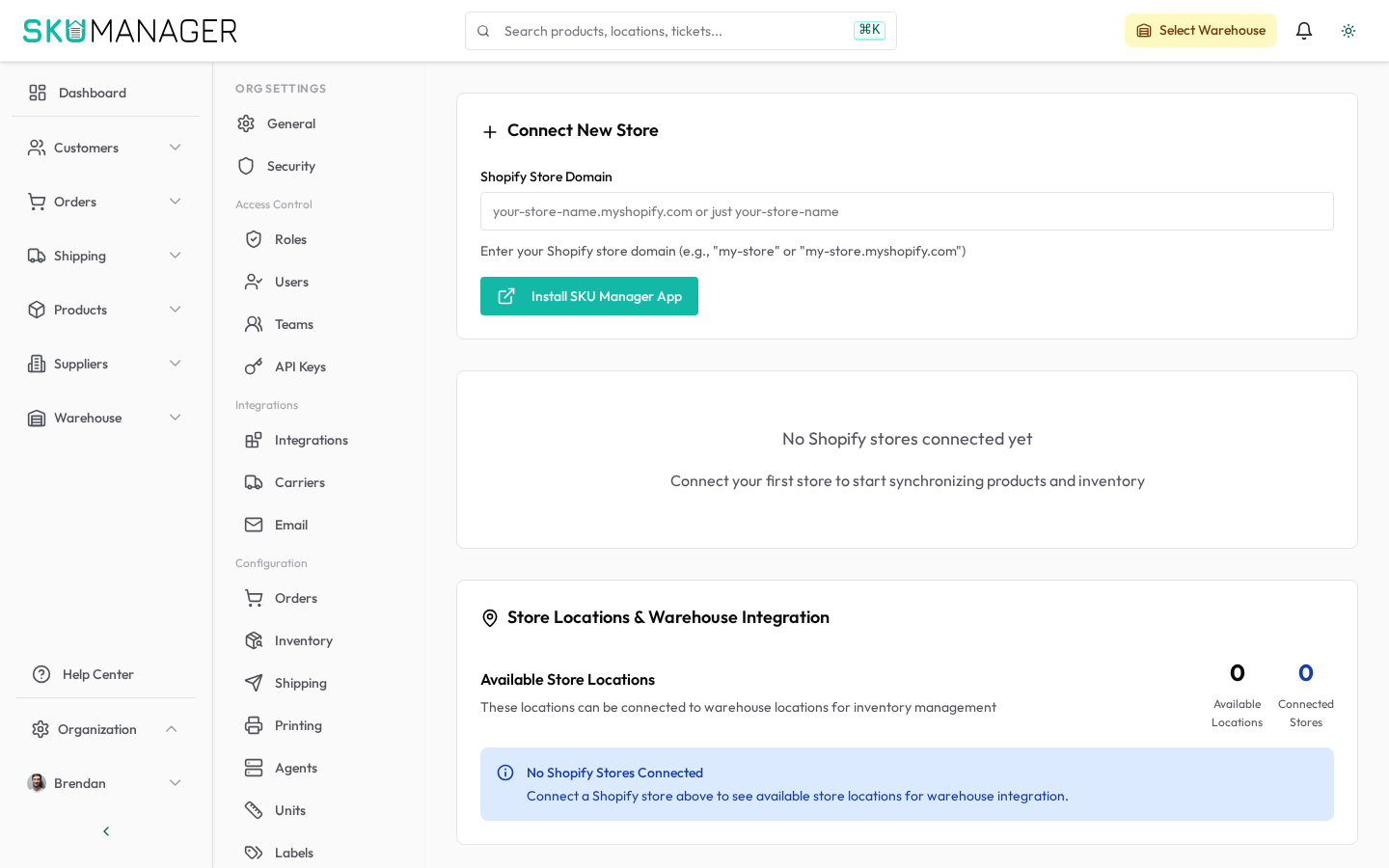
SKU Manager's Shopify integration provides real-time, two-way synchronization between your Shopify store and your warehouse operations.
Connecting Your Store
- Go to Settings → Organization → Shopify
- Enter your Shopify store URL (e.g.
my-store.myshopify.com) - Click Install App — you'll be redirected to Shopify to authorize access
- Once authorized, the initial product and inventory import begins automatically
What Gets Synced
| Data | Direction | Notes |
|---|---|---|
| Products & variants | Shopify → SKU Manager | Initial import and ongoing |
| Inventory levels | Both directions | Warehouse adjustments push to Shopify |
| Orders | Shopify → SKU Manager | New and updated orders |
| Fulfillments | SKU Manager → Shopify | Mark orders fulfilled from the warehouse |
Sync Frequency
- Real-time webhooks handle new orders and inventory changes immediately
- Periodic reconciliation runs every 15 minutes to catch any missed events
- A full sync can be triggered manually from Settings → Organization → Shopify
Handling Conflicts
When the same inventory level is updated in both Shopify and SKU Manager within the same sync window, SKU Manager's value wins. This prevents overselling from stale Shopify data.
Pausing Sync
To temporarily pause synchronization (e.g. during a stocktake), go to Settings → Organization → Shopify and pause syncing. Orders will still be imported; inventory pushes are suspended.
Troubleshooting
If products are missing after connection, check:
- The Shopify app has read/write permission for Products and Inventory
- The store is on an active Shopify plan
- No duplicate SKUs exist across your product catalogue
For persistent issues, view the sync history under Settings → Organization → Shopify.