
Bulk Import & Export
Import products, inventory, and orders in bulk using CSV files in SKU Manager
Bulk Import & Export
SKU Manager supports CSV-based import and export for products, inventory levels, customers, and orders. Use bulk operations when setting up a new catalogue, migrating from another system, or performing data corrections.
Importing Products
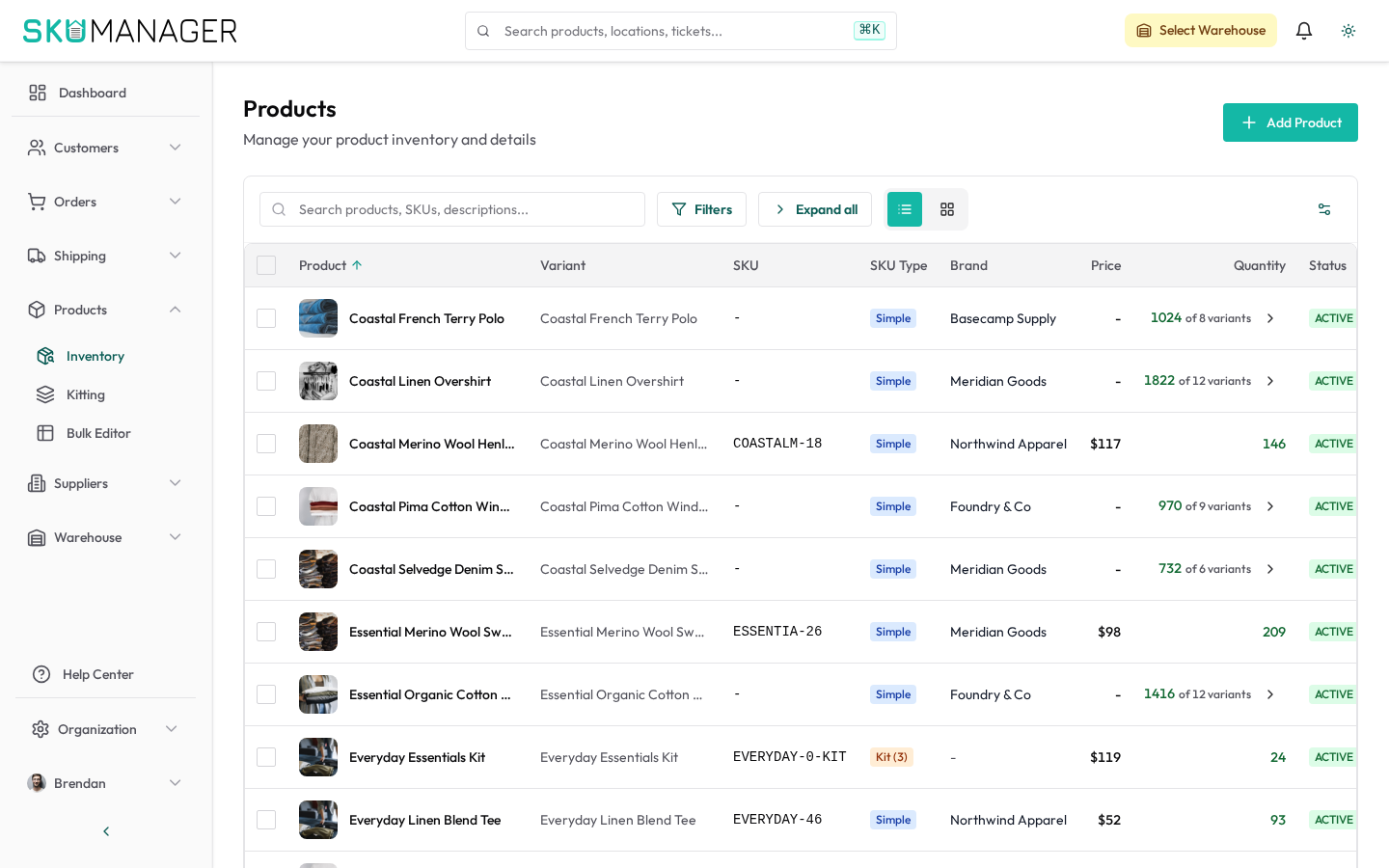
To upload a batch of products and variants:
- Go to Products → Import
- Click Download Template to get the CSV with all required and optional columns
- Fill in the template:
- Required:
product_name,variant_sku,variant_title - Optional:
barcode,description,category,weight,price,image_url,reorder_point
- Required:
- Upload your filled CSV and click Preview
- Review the preview — warnings flag formatting issues; errors block import
- Click Import to apply
Matching behaviour: rows are matched by variant_sku. A matching SKU updates the existing variant; a new SKU creates a new variant. Product-level records are matched by product_name.
Importing Inventory Levels
To set initial stock quantities or bulk-adjust existing levels:
- Open the inventory import tool from the Warehouse area
- Download the inventory CSV template
- Fill in
variant_sku,warehouse_name,location_code, andquantity - Upload and preview — mismatched SKUs or unknown warehouse names are flagged
- Click Apply to update stock levels
All imported inventory adjustments are logged in the audit history with the reason "CSV import".
Exporting Products
- Go to Products → Export
- Choose which columns to include, or use the default full export
- Optionally filter by category, status, or warehouse
- Click Export — a CSV downloads to your browser
Exports include all product and variant fields including current stock levels across all warehouses.
Exporting Orders
- Go to Orders → Export
- Filter by date range, status, or store
- Click Export
Order exports include line item details, shipping addresses, fulfillment status, and tracking numbers. Useful for accounting, 3PL handoffs, and reporting.
Importing Customers
Customer records can be imported to pre-populate profiles before connecting a store:
- Go to Customers → Import
- Download the customer CSV template
- Fill in
email,first_name,last_name, and optional fields (phone,company,tags) - Upload, preview, and import
Customers are matched by email address. A matching email updates the existing record; a new email creates a new customer.